Configuring Object Properties
TheFrame/TheView and each object on TheView has its own set of properties. The properties define the instance of the object. TheView has many properties that serve as defaults for other tools, such as its Font property. Most properties are typically defined in the Edit mode; however, they can also be set using script.
To show the Property Sheet for an object, TheView must be in Edit mode. Select the object by right-clicking on it or left click on the object and click Properties on the Layout menu.
The box at the top of the Property Sheet shows the object code (ID) of the currently selected object. With the Property Sheet open, you can show the properties of another object by selecting it from the Object List or by clicking on the object.
|
Property Sheet Components |
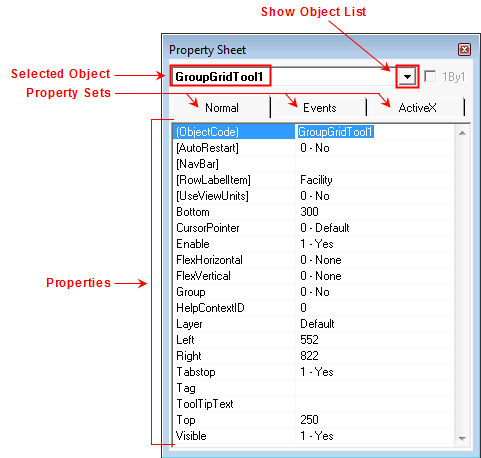
Properties are sorted alphabetically by default. When properties are not sorted, they are listed by category. To toggle sorting, right-click anywhere on the Property Sheet and click Sort.
All objects have at least two property sets: Normal and Events. Normal properties include the object identifier (FormCode or ObjectCode), CygNet properties, and formatting properties. The Events are events for the object for which script can be written. If the object is an ActiveX control, it will have an ActiveX page on the Property Sheet that lists its ActiveX Properties.
The topics Standard Tools, Command Tools, and Graphics Tools list all of the objects, use of the objects, and the properties applicable to each. The properties on the Normal page are described in detail in Properties. Events are described in Events. The ActiveX Properties are described along with the tool.
Changing the Property of an Object
To change the property of an object, you click in the box next to the property name. Each property has a corresponding type. If the property is a free-form text field, such as a text property, it can be typed directly into the property box. If the property value must be selected from a list of choices (for example, True or False), the choices are displayed in a drop-down menu. If the property is multi-faceted or the choices are too complex for a drop-down, such as a font or color property, the value field will have browse button. Once you type or select the new property value, you click off of the field to save the change.
Changing the Properties of Multiple Objects
You can change the properties of multiple objects at the same time. When you have multiple objects selected, the Property Sheet shows Multi-Selection and the 1By1 box is enabled.
|
Property Sheet with Multiple Objects Selected |
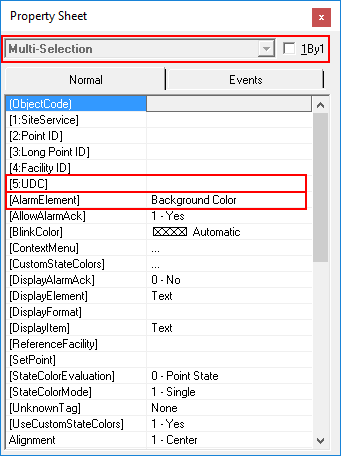
With a multi-selection, the Property Sheet lists all properties that the selected objects have in common. If the property shows a value, then all objects are set to the same value. If the property is blank, then the objects have different values for the property or they all have a blank value. In the example above, the value for the [AlarmElement] property is showing Background Color because all of the selected tools have this same property value. Conversely, the value for the [5:UDC] property is blank because each object is assigned a different UDC.
If you change the value of a property it will apply to all selected tools. If you click on a blank value field, the default is to reset the value to that of the Primary Object. For example, if the primary object’s [5:UDC] is PDIFF, all tools in the selection will be set to PDIFF.
You can change the properties of a single object in a multi-selection by enabling the 1By1 option and then selecting the object code from the Object List. 1By1 changes the Object List to include only those selected objects and toggles the Property Sheet to a single selection.
Saving Object Properties as Default
Property configuration for any object can be stored as the default, so the next time that object is used on a CygNet Studio screen, the desired default configurations will be applied. The default tool configurations are saved in the user's Roaming AppData directory (Users\<username>\AppData\Roaming\CygNet\CStudio\).
To Save Configuration as Default
- Click a tool on the toolbar, for example, a Button Tool.
- Add the tool to a screen.
- Right-click to configure the desired properties, for example, set the BackColor to red.
- Right-click the Property Sheet and select Save as Default. The properties for this tool will be saved as the default for all subsequent instances of this tool.
- Add another tool to the screen to test.
- Right-click the Property Sheet and select Clear Default to clear the settings.
Note: Default configurations are only stored for tools on the toolbars, and not for generic ActiveX tools (those found on the red "X" icon).
Using a Catalog to Store Property Options
For tools with multiple property options, you could pre-configure a set of tools each with a different option, and save each tool to a catalog for later use.
Example
The default [ButtonType] for the Button Tool is Hyperlink, but you may want the default to be Standard so that EventClick can be used. Create two buttons with different defaults for the [ButtonType] property and save both to a Catalog.


